"Yes, I know, I should backup my blog more often, but..."
It is so difficult? If something goes wrong and your blog is lost, do you have anything (besides your memory, Google cache and maybe Web archive) to salvage your posts?
If your answers were "Yes" and "No", read on. I'll show you how to ease the pain of backing up Blogspot blogs.
What should you back up?
Blogger has a function for exporting and importing a blog. This export format (XML) contains all blog's posts and all comments of posts. So it is good to backup this
export file. But this might not be enough.
Sometimes a single post may become corrupted. It may be overkill to restore that from an export file. Blog posts are stored in the
blog feed, from which it is quite easy to pick single posts. So you may want to backup the blog feed, too.
Many bloggers have customized their blog's template and widgets. So full
template html/XML should be backed up, too, and also the
widget's data.
Last, but not least, your pictures and other
media files. If you or some bug accidentally delete your Picasa Web Album or Google+ album for you blog pictures, they are gone from your blog. I feel a lot safer, if pictures are backed up, too.
How to do it?
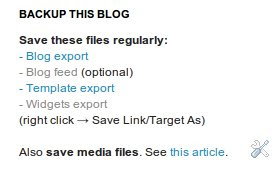
When you are logged in, there are four urls you can use to backup your blog:
Export file url:
http://www.blogger.com/feeds/BLOGID/archive
Blog feed url:
http://YOURBLOGNAME.blogspot.com/feeds/posts/default?redirect=false&max-results=500
Template:
http://www.blogger.com/html?blogID=BLOGID&action=download
You need to fix
BLOGID and
YOURBLOGNAME in these urls.
Backing up widgets using Blogger UI is laborious: you should click edit for each widget, copy its contents and store locally. I wanted something easier. And luckily I found a way to back up all widgets' data in one file, I think this is undocumented feature, but as long as it works, it is good for this purpose.
All widgets:
http://www.blogger.com/feeds/BLOGID/widgets
Your blog posts probably have media files, images at least. I found at least two good ways to back up media from blog, both use Firefox web browser:
FireUploader and
DownThemAll!.
FireUploader is great for downloading your Picasa Web Albums to your local computer. If you have all your pictures in Picasa Web Albums, this might be a good choice. FireUploader logs in your Picasa account, displays albums as folders, and you can easily download singe files, single folders, multiple files and multiple folders from your Picasa Web Albums. Also upload and other services besides Picasa are supported.
DownThemAll! can be used to extract all media from RSS feeds. So, you can extract images from your Picasa Web Album, and also directly from your blog feed! Using blog feed as the source ensures, that all images in posts, also from different galleries (Picasa, Imageshack, Photobucket, etc), will be downloaded.
If you have some good solutions for Chrome, Internet Explorer and/or Opera for downloading media files, please leave a comment. :)
Update:
Google Takeout is very good tool for backing up Picasa Web albums, too, see
these comments.
Of course you can also install
Picasa and use it to download you Picasa Web Albums.
Blog Backup Helper Gadget
If you have many blogs, then you have many sets of urls you need to download. Under linux you could script the whole thing and download xml/rss backups using wget. Although using linux, I did something different: coded a little javascript helper gadget, which can be installed in my (and your) blogs. It hides itself, when logged in user is not blog admin. When blog admin is logged in, it shows the four download links (export, feed, template, widgets). This same gadget works in different operating systems and in different browsers (tested on: Chrome, Firefox, Opera, IE).
Go to Design|Page Elements. Click Add Gadget in your side bar area. Select HTML/Javascript. Here are the contents of the gadget:
I suggest you place this gadget as last gadget in your sidebar.
Blog Backup Helper, page version
Maybe you don't want to load backup gadget code on every page load into your sidebar. Then you can create a (hidden) page and put backup helper code there. Create a new page, called Backup, and paste this code in html edit:
Restore strategies
Hopefully you'll/I'll never have to go here, but I outline some strategies for restoring data.
1. Restore single post HTML from blog feed backup
2. Restore single or multiple deleted posts and their comments by importing blog export file
3. Restore corruped template and/or widget using template backup and/or widgets backup
4. Restore deleted blog by restoring template, restoring widget data, importing blog export file
5. Restore deleted media files: re-upload files, fix references in your posts to new urls
Widget export file contains all widgets, with their html codes escaped. One easy way to copy widget codes from the file is to unescape the file contents, for example using
un-escape tool, then copy/paste.

 Posts (Atom)


